Victron MPPT Solar Monitoring via ESPHome BLE — No Cloud Required
Overview
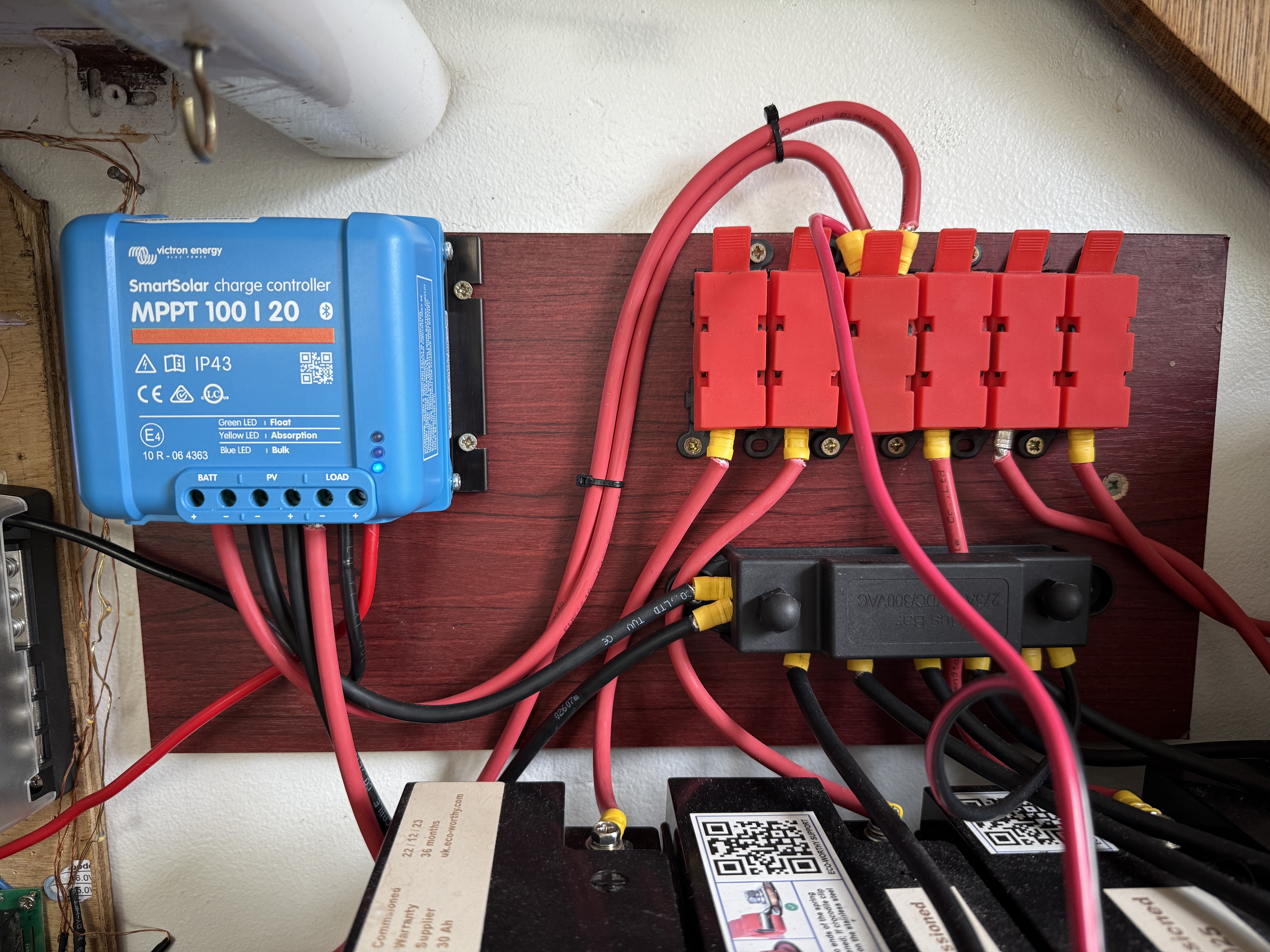
Most Victron MPPT tutorials either use the official VRM cloud platform or a USB-to-serial cable. This guide shows a completely different approach: reading Victron SmartSolar MPPT 100/20 data directly via Bluetooth Low Energy (BLE) using an ESP32 and ESPHome, feeding it into Home Assistant entirely locally — no Victron account, no cloud, no cables required.
The result is a real-time solar monitoring system that stores full historical data in Home Assistant and works even when the internet is down.
What you’ll get:
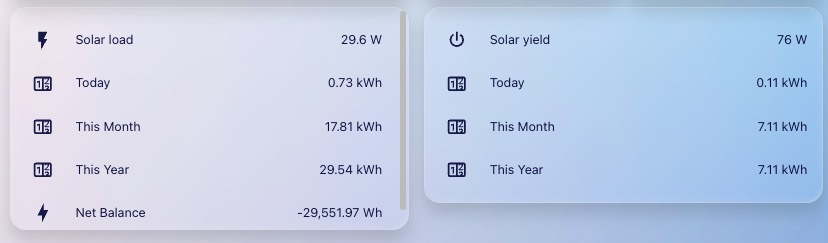
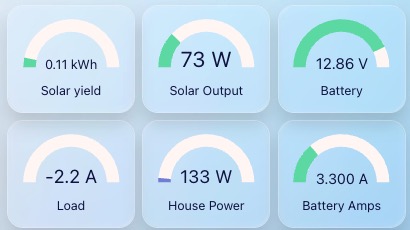
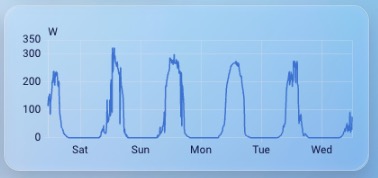
- PV Power (W)
- Battery Voltage (V)
- Battery Current (A)
- Load Current (A)
- Yield Today (kWh)
- Cumulative Solar Energy Produced (Wh) — with full historical statistics
- MPPT State (Off / Bulk / Absorption / Float)
- MPPT Error and Fault status
Hardware Required
- Any ESP32 board with Bluetooth — ESP32-S3 recommended for range and stability
- Victron SmartSolar MPPT with Bluetooth enabled — most models from 2018 onwards
- Nothing else — no cables, no adaptors, no Victron dongle
The ESP32 can be placed anywhere within Bluetooth range of the MPPT — typically 5-10 metres through walls.
How It Works
Victron SmartSolar MPPTs broadcast encrypted BLE advertisements continuously. The ESPHome victron_ble external component decrypts these using a device-specific bindkey, extracts the sensor data, and sends it to Home Assistant via the native ESPHome API.
The key point is that the MPPT broadcasts constantly — the ESP32 listens passively, decrypts, and forwards. No Bluetooth pairing required, no connection established.
Step 1: Get Your Bindkey and MAC Address
The bindkey is a 32-character hex encryption key unique to your MPPT. You need it to decrypt the BLE data.
Via the Victron Connect app:
- Open Victron Connect on your phone
- Connect to your MPPT
- Go to Product Info
- Find “Encryption key” and copy the 32-character hex string
Alternative — Python method (if the key is not visible in the app):
Some firmware versions do not expose the key in the app. On a computer with Bluetooth and Python:
pip install victron-ble
python -m victron_ble scan
This scans for nearby Victron BLE devices and displays their data including the encryption key.
You also need the MAC address of your MPPT — visible in Victron Connect under Product Info, or shown during the Python scan.
Step 2: Basic ESPHome Configuration — API Only
This is the simplest working configuration. The native ESPHome API handles everything — Home Assistant discovers all sensors automatically with no additional setup.
esphome:
  name: victron-reader          # Choose a name — do not change it later (see Gotchas)
  friendly_name: Victron Reader
  min_version: 2024.11.0
  name_add_mac_suffix: false

esp32:
  board: esp32-s3-devkitc-1     # Adjust for your specific board
  framework:
    type: esp-idf

logger:

api:                             # Native ESPHome API — all that is needed for HA

ota:
  - platform: esphome

wifi:
  ssid: !secret wifi_ssid
  password: !secret wifi_password

bluetooth_proxy:
  active: true                   # Optional but useful — extends BLE range for HA

button:
  - platform: restart
    name: "Victron Reader Restart"  # Always use a unique descriptive name here

external_components:
  - source: github://Fabian-Schmidt/esphome-victron_ble

esp32_ble_tracker:

victron_ble:
  - id: MySmartSolar
    mac_address: "XX:XX:XX:XX:XX:XX"           # Your MPPT MAC address
    bindkey: "xxxxxxxxxxxxxxxxxxxxxxxxxxxxxxxx"  # Your 32-character bindkey

sensor:
  - platform: victron_ble
    victron_ble_id: MySmartSolar
    name: "Battery Voltage"
    type: BATTERY_VOLTAGE

  - platform: victron_ble
    victron_ble_id: MySmartSolar
    name: "Battery Current"
    type: BATTERY_CURRENT

  - platform: victron_ble
    victron_ble_id: MySmartSolar
    name: "Yield Today"
    type: YIELD_TODAY

  - platform: victron_ble
    victron_ble_id: MySmartSolar
    name: "PV Power"
    id: pv_power
    type: PV_POWER

  - platform: victron_ble
    victron_ble_id: MySmartSolar
    name: "Load Current"
    type: LOAD_CURRENT

  # Integrates PV Power over time to give cumulative energy produced
  - platform: integration
    name: "Solar Energy Produced"
    sensor: pv_power
    unit_of_measurement: "Wh"
    time_unit: h
    accuracy_decimals: 2
    state_class: total_increasing
    device_class: energy

  # WiFi signal in dBm
  - platform: wifi_signal
    name: "Victron Reader WiFi Signal"
    update_interval: 60s

  # WiFi signal as percentage
  # device_class must be overridden — % is not valid for signal_strength (see Gotchas)
  - platform: wifi_signal
    name: "Victron Reader WiFi Signal Percent"
    update_interval: 60s
    device_class: ""
    filters:
      - lambda: return min(max(2 * (x + 100.0), 0.0), 100.0);
    unit_of_measurement: "%"

binary_sensor:
  - platform: victron_ble
    victron_ble_id: MySmartSolar
    name: "MPPT is in Fault state"
    type: DEVICE_STATE_FAULT

  - platform: victron_ble
    victron_ble_id: MySmartSolar
    name: "MPPT has Error"
    type: CHARGER_ERROR

  - platform: victron_ble
    victron_ble_id: MySmartSolar
    name: "MPPT in FLOAT"
    type: DEVICE_STATE_FLOAT

text_sensor:
  - platform: victron_ble
    victron_ble_id: MySmartSolar
    name: "MPPT state"
    type: DEVICE_STATE

  - platform: victron_ble
    victron_ble_id: MySmartSolar
    name: "MPPT Error reason"
    type: CHARGER_ERROR

  - platform: wifi_info
    ip_address:
      name: "Victron Reader IP"
    ssid:
      name: "Victron Reader SSID"
    bssid:
      name: "Victron Reader BSSID"
    mac_address:
      name: "Victron Reader MAC"
Flash this to your ESP32, add the device in Home Assistant under Settings → Devices & Services → ESPHome, and all sensors will appear automatically.
Step 3: Optional — Add MQTT for Multi-Device Publishing
If you want other ESPHome devices (such as display boards) to subscribe to the Victron data directly without going through Home Assistant, add MQTT to the configuration.
This is not required for basic HA monitoring — only add it if you have a specific reason such as feeding data to ESPHome displays.
Add this section to your yaml:
mqtt:
  broker: !secret mqtt_broker
  username: !secret mqtt_username
  password: !secret mqtt_password
  discovery_unique_id_generator: mac  # Essential — prevents duplicate entity ID errors
Other ESPHome devices can then subscribe to topics like:
victron-reader/sensor/pv_power/state
victron-reader/sensor/battery_voltage/state
victron-reader/sensor/yield_today/state
victron-reader/sensor/mppt_state/state
Where victron-reader matches your ESPHome device name.
Step 4: Utility Meters for Daily/Monthly/Yearly Tracking
The Solar Energy Produced sensor accumulates total Wh produced since the device was first flashed. To track daily, monthly and yearly yield add utility meters to configuration.yaml:
utility_meter:
  solar_daily:
    source: sensor.victron_reader_solar_energy_produced
    cycle: daily
  solar_monthly:
    source: sensor.victron_reader_solar_energy_produced
    cycle: monthly
  solar_yearly:
    source: sensor.victron_reader_solar_energy_produced
    cycle: yearly
Adjust the entity ID to match your device name. These reset automatically at midnight, month end, and year end.
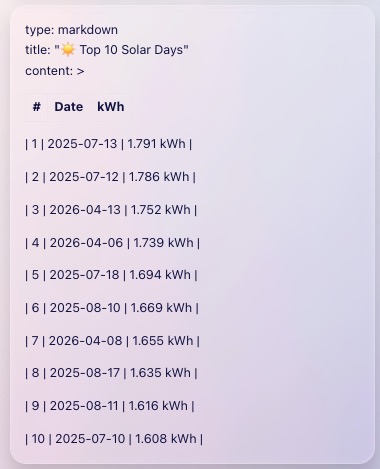
Step 5: Historical Top 10 Solar Days Dashboard Card
Because Solar Energy Produced has state_class: total_increasing, Home Assistant writes hourly statistics to the statistics database table which is never purged regardless of your recorder settings. This means you can query years of historical data directly from the SQLite database.
Create the Python script at /config/solar_top10.py:
import sqlite3

db = sqlite3.connect('/config/home-assistant_v2.db')
rows = db.execute('''
    SELECT DATE(start_ts,'unixepoch','localtime'),
           ROUND((MAX(sum)-MIN(sum))/1000,3)
    FROM statistics
    JOIN statistics_meta ON statistics.metadata_id=statistics_meta.id
    WHERE statistic_id='sensor.victron_reader_solar_energy_produced'
    AND sum IS NOT NULL
    GROUP BY DATE(start_ts,'unixepoch','localtime')
    ORDER BY (MAX(sum)-MIN(sum)) DESC
    LIMIT 10
''').fetchall()
print(';'.join(r[0]+'|'+str(r[1])+' kWh' for r in rows))
Adjust the statistic_id to match your actual entity ID.
Add a command_line sensor to configuration.yaml:
command_line:
  - sensor:
      name: "Solar Top 10"
      command: "python3 /config/solar_top10.py"
      scan_interval: 3600
      value_template: "{{ value }}"
Add a markdown card to your dashboard:
type: markdown
title: "☀️ Top 10 Solar Days"
content: >
  {% set data = states('sensor.solar_top_10') %}
  {% if data and data != 'unknown' %}
  {% set rows = data.split(';') %}
  | # | Date | kWh |
  |---|------|-----|
  {% for row in rows %}
  {% set parts = row.split('|') %}
  | {{ loop.index }} | {{ parts[0] }} | {{ parts[1] }} |
  {% endfor %}
  {% else %}
  Loading...
  {% endif %}
Note: Home Assistant converts spaces to underscores in entity IDs. “Solar Top 10” becomes
sensor.solar_top_10.
Dashboard Examples
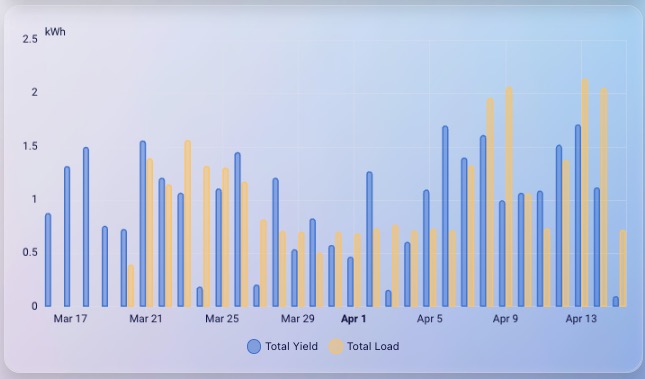
Daily yield versus total load as a bar chart using the built-in statistics-graph card:
chart_type: bar
period: day
type: statistics-graph
entities:
  - entity: sensor.esphome_web_78378c_yield_today
    name: Total Yield
  - entity: sensor.total_load_energy
    name: Total Load
stat_types:
  - change
grid_options:
  columns: full
logarithmic_scale: false
Gotchas and Common Mistakes
Do not change the ESPHome device name
Once Home Assistant has discovered the device and started recording statistics, never change the ESPHome device name. Statistics are stored against the entity ID which is derived from the device name. Renaming creates a new entity with no history — the old data still exists in the database under the old name but is no longer attached to the current entity.
WiFi signal percent device_class error
ESPHome automatically assigns device_class: signal_strength to all wifi_signal platform sensors. This device class only accepts dBm or dB units — not percent. Without the device_class: "" override on the percent sensor, Home Assistant will log this error on every restart:
Entity is using native unit of measurement '%' which is not a valid unit
for the device class 'signal_strength'
Fix: add device_class: "" to the percent sensor as shown in the config above.
Always give restart buttons a unique name
If you have multiple ESPHome devices all using name: "Restart" on their restart button, MQTT discovery generates duplicate entity IDs and HA logs errors on every restart. Always give restart buttons a unique device-specific name such as "Victron Reader Restart".
If using MQTT — always add discovery_unique_id_generator: mac
Without it, ESPHome generates short generic IDs like ESPsensorpv_power which clash with other devices. The mac generator prefixes every ID with the device MAC address making them globally unique.
Stale retained MQTT messages
MQTT discovery messages are published with the retain flag. If you rename sensors or remove them, the old discovery messages remain in the broker and replay every time HA restarts causing errors. Use MQTT Explorer (free desktop app) to view and delete stale retained messages under the homeassistant/ topic tree.
Statistics entity ID mismatch after device rename or migration
If you rename the ESPHome device or migrate from a different integration, the entity IDs change. HA treats the new entity as brand new — previous statistics are orphaned under the old ID. You can verify what historical data exists by querying the statistics_meta table directly via SSH:
sqlite3 /config/home-assistant_v2.db \
"SELECT statistic_id, DATE(MIN(start_ts),'unixepoch','localtime') as earliest \
FROM statistics \
JOIN statistics_meta ON statistics.metadata_id=statistics_meta.id \
WHERE statistic_id LIKE '%solar%' \
GROUP BY statistic_id;"
Entities Created in Home Assistant
| Entity | Type | Description |
|---|---|---|
sensor.X_pv_power |
sensor | Live PV power in W |
sensor.X_battery_voltage |
sensor | Battery voltage in V |
sensor.X_battery_current |
sensor | Battery current in A |
sensor.X_load_current |
sensor | Load current in A |
sensor.X_yield_today |
sensor | kWh produced today, resets at midnight |
sensor.X_solar_energy_produced |
sensor | Cumulative Wh, never resets |
sensor.X_mppt_state |
text sensor | Off / Bulk / Absorption / Float |
binary_sensor.X_mppt_in_float |
binary | True when battery full |
binary_sensor.X_mppt_has_error |
binary | True if MPPT error present |
binary_sensor.X_mppt_is_in_fault_state |
binary | True if MPPT fault present |
Where X is your ESPHome device friendly name with spaces replaced by underscores.
Tested With
- Victron SmartSolar MPPT 100/20
- ESP32-S3-DevKitC-1
- ESPHome 2026.3.x
- Home Assistant 2026.4.x
Credits
ESPHome external component by Fabian-Schmidt